Latest reviews
-
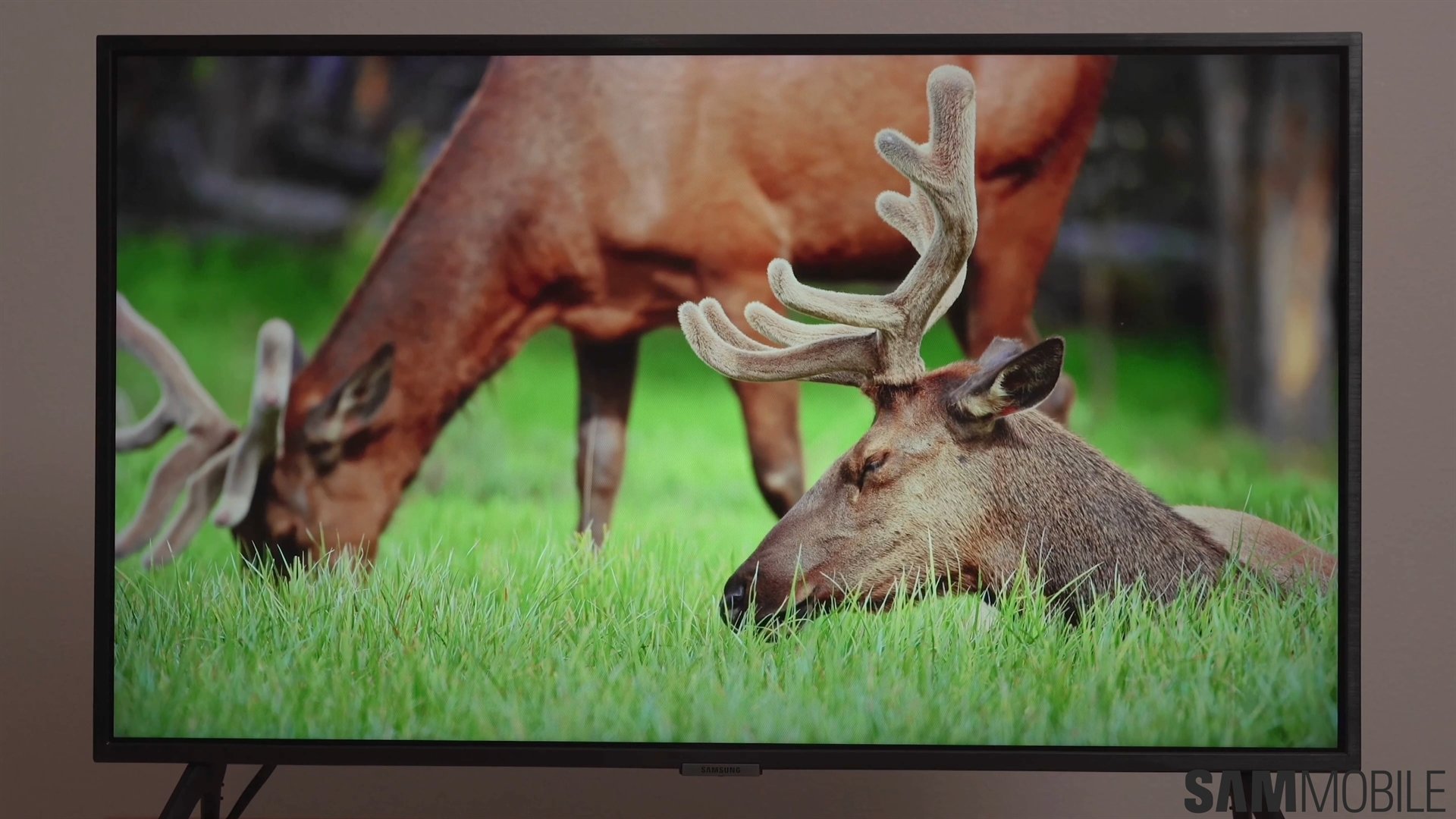 Samsung Q60D TV review: Solid display and features at an unbeatable price
 -
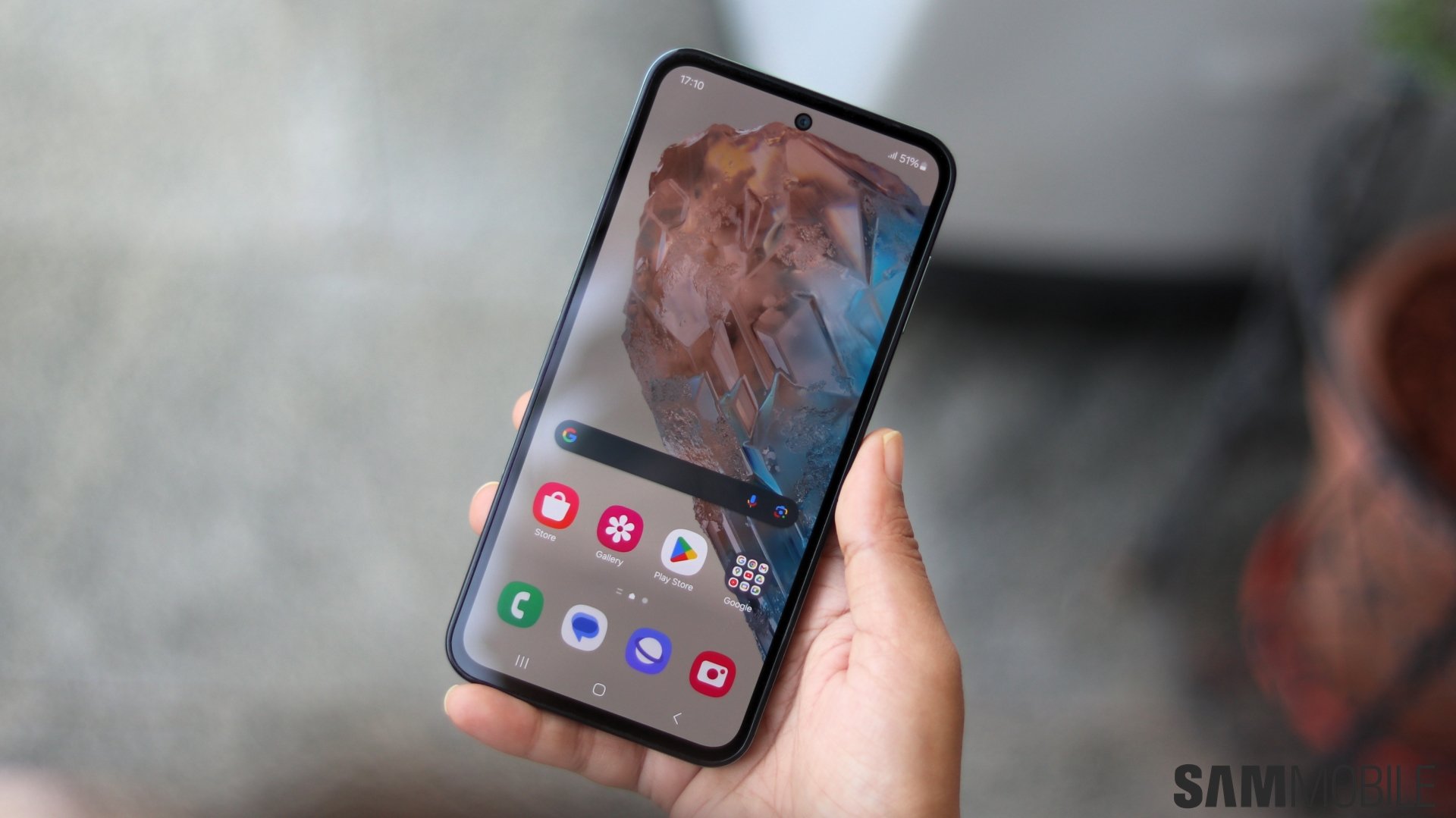 Samsung Galaxy M35 review: Better than you think
 -
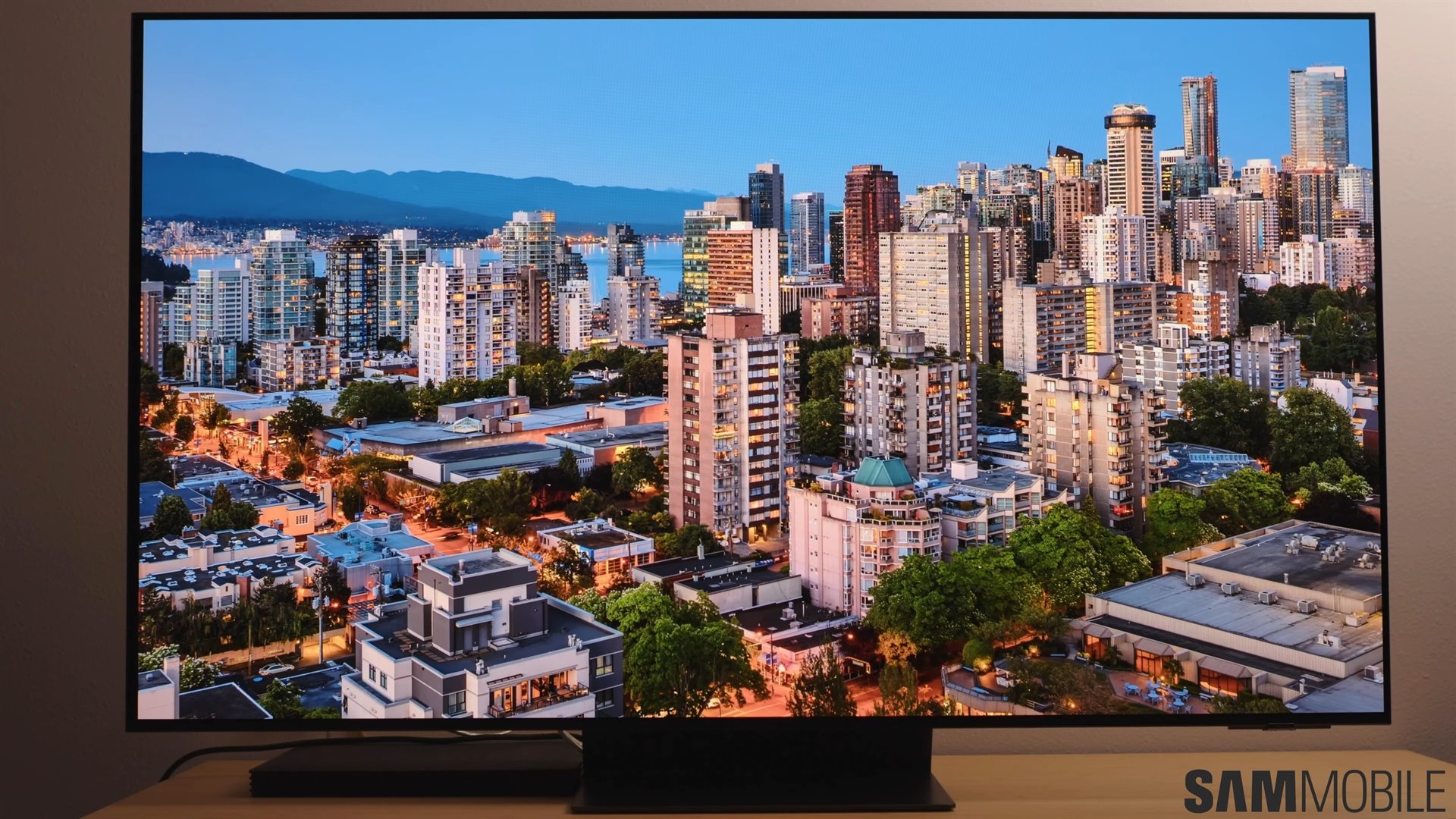 Samsung S95D TV review: Unmatched glare-free QD-OLED brilliance
 -
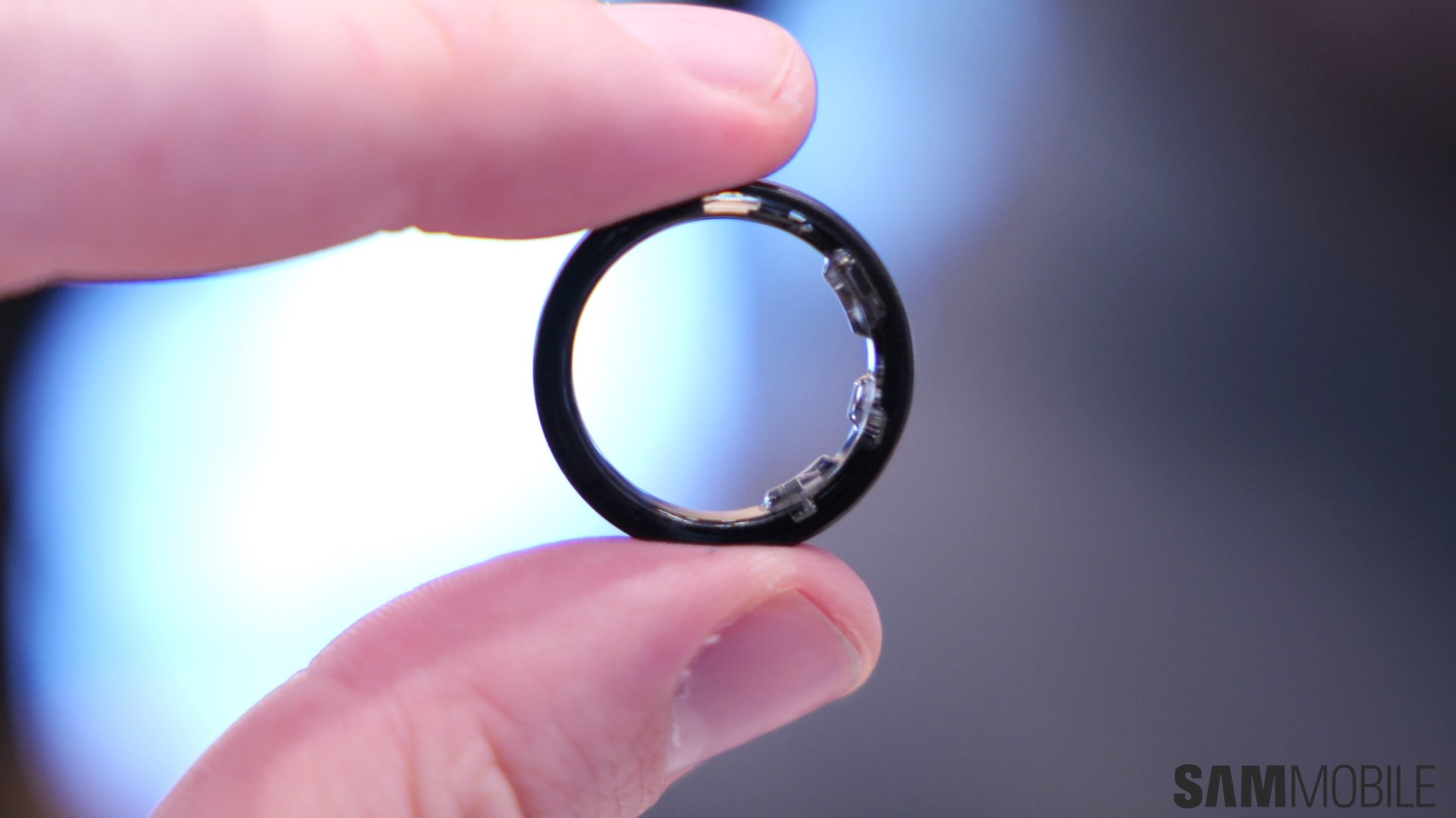 Samsung Galaxy Ring Review: One Ring to rule them all (almost!)
 -
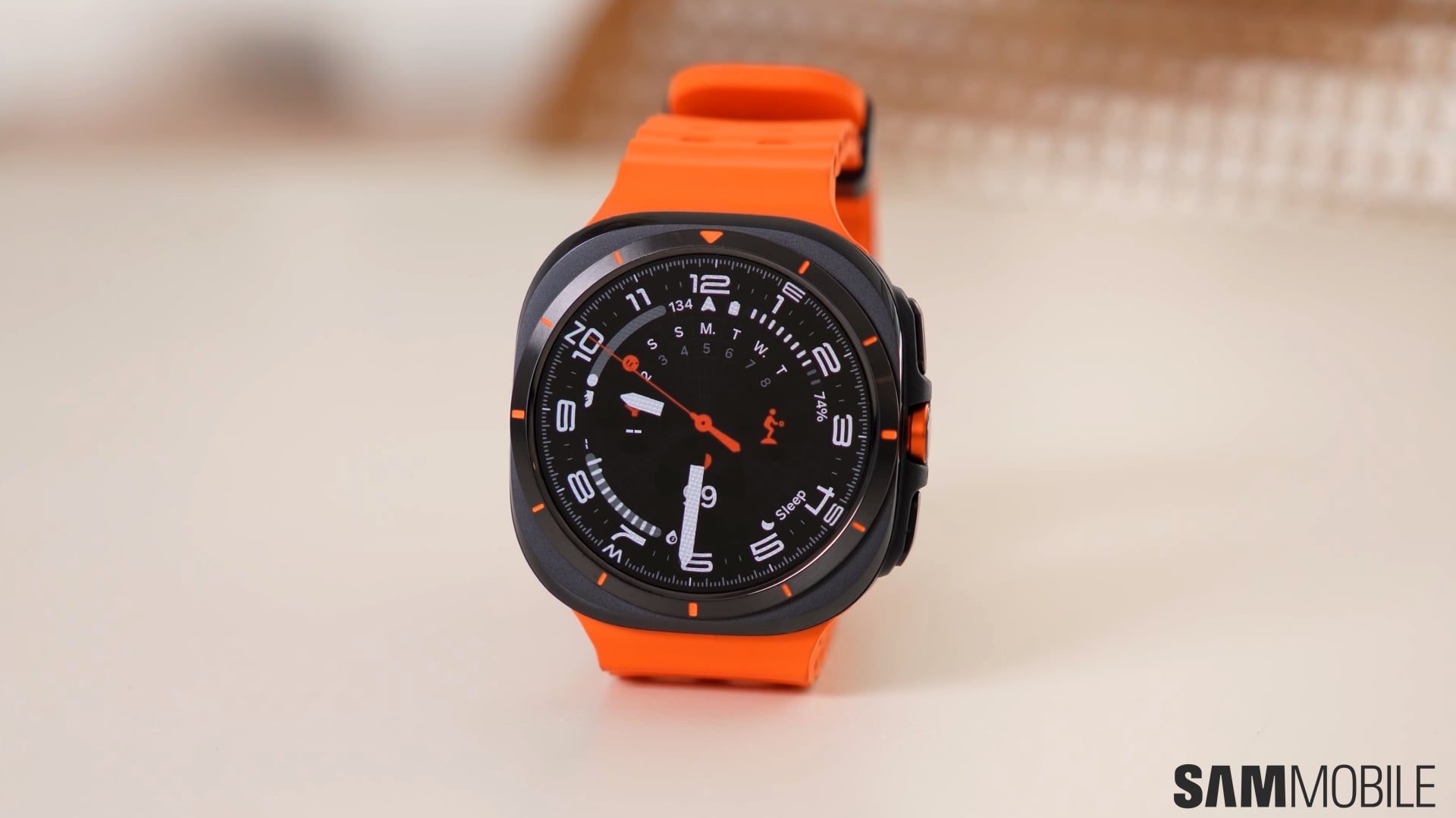 Galaxy Watch Ultra review: Awesome, but not 'Ultra' enough
 -
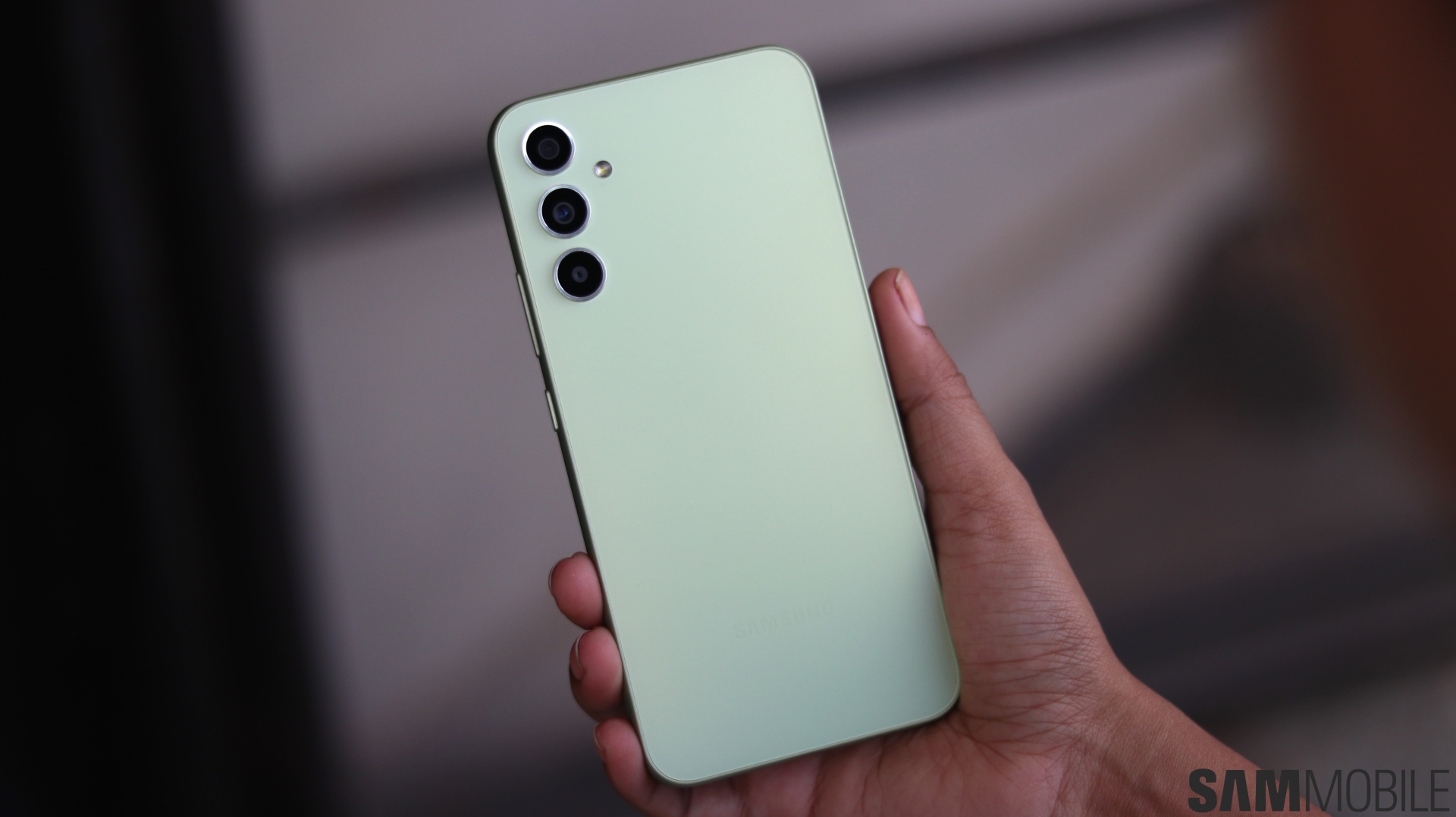 Galaxy A34 5G review: Substance over style in an affordable package
 -
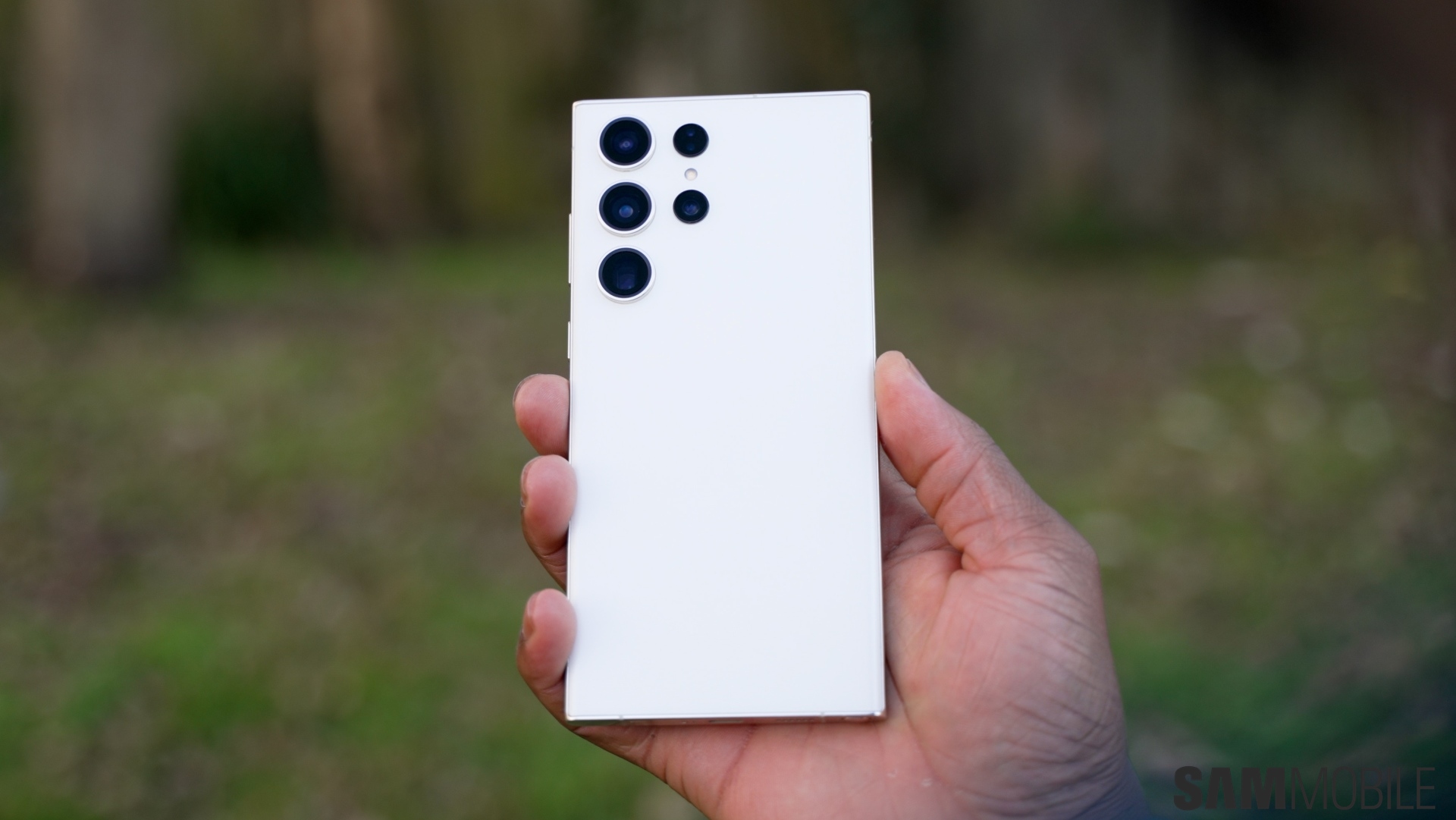 Galaxy S23 Ultra review: A star that shines tremendously bright
 -
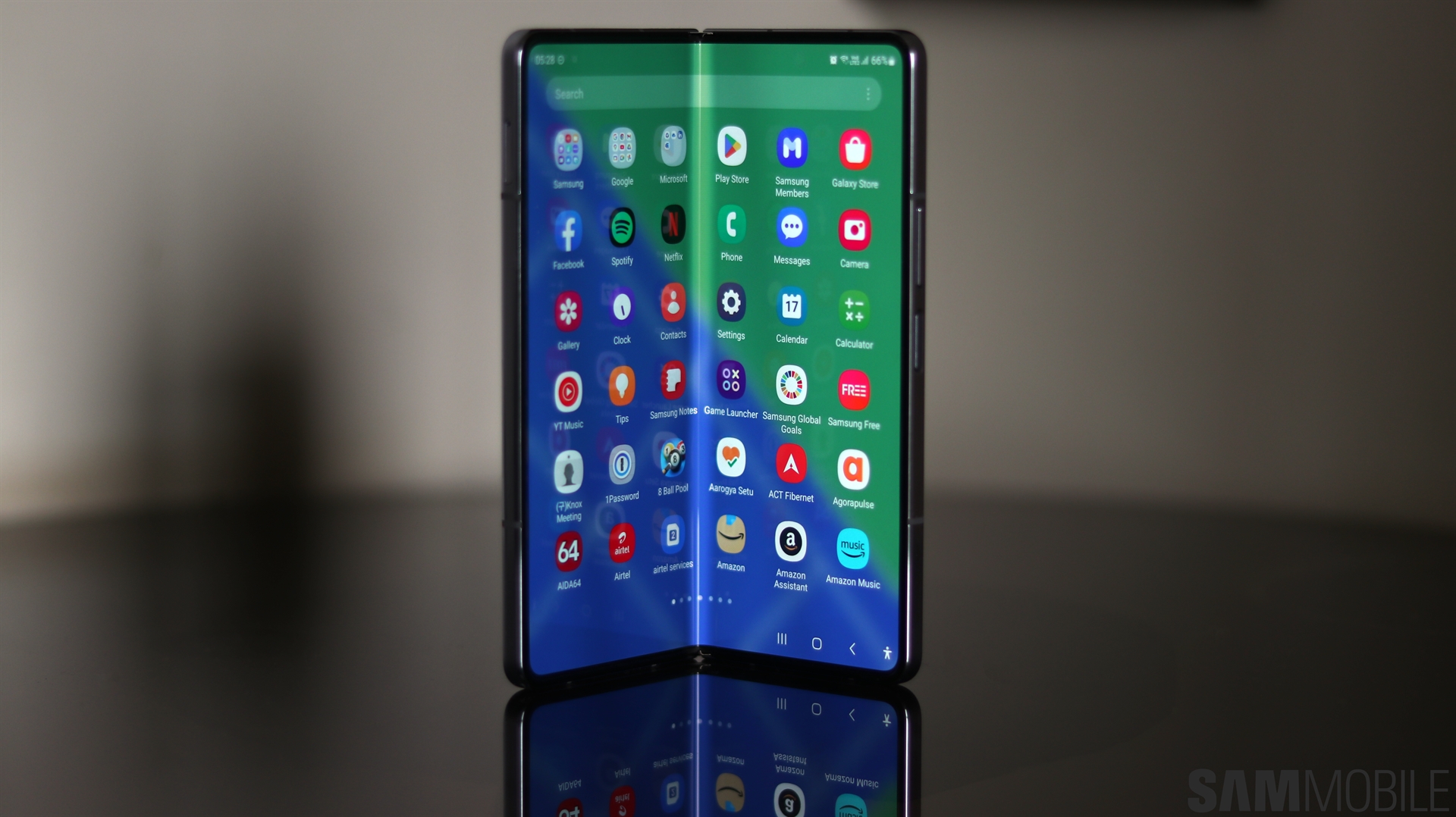 Samsung Galaxy Z Fold 5 review: Crawling towards perfection