Last updated: January 15th, 2025 at 09:55 UTC+01:00


Prepare your Galaxy device for the One UI 7.0 (Android 15) update

Samsung Galaxy owners can take a few simple steps to prepare for the One UI 7 update for a smooth installation process.

Abhijeet Mishra

Reading time: 5 minutes

galaxy s24 android 15 one ui 7

Abhijeet Mishra / SamMobile

Firmware

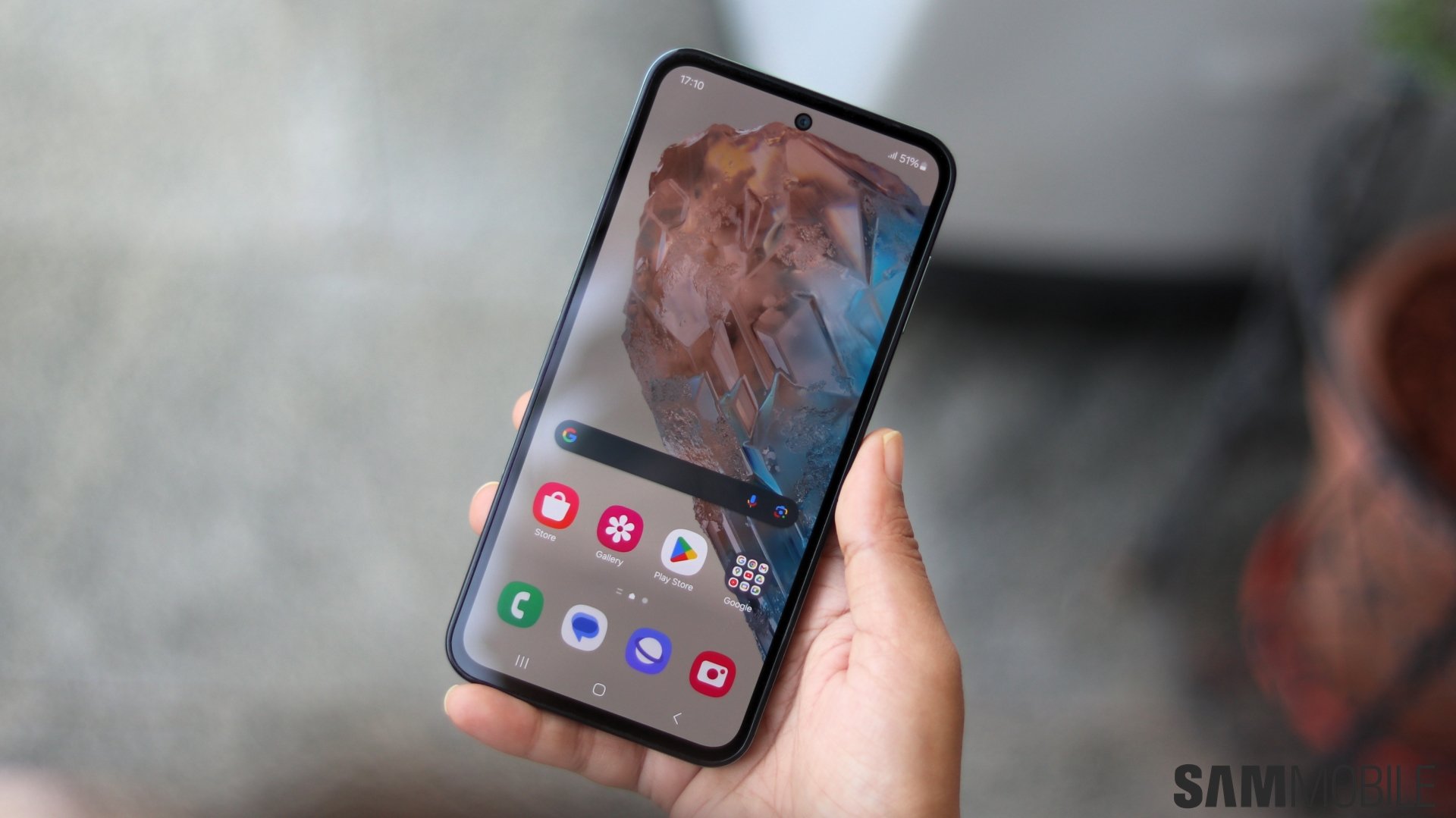
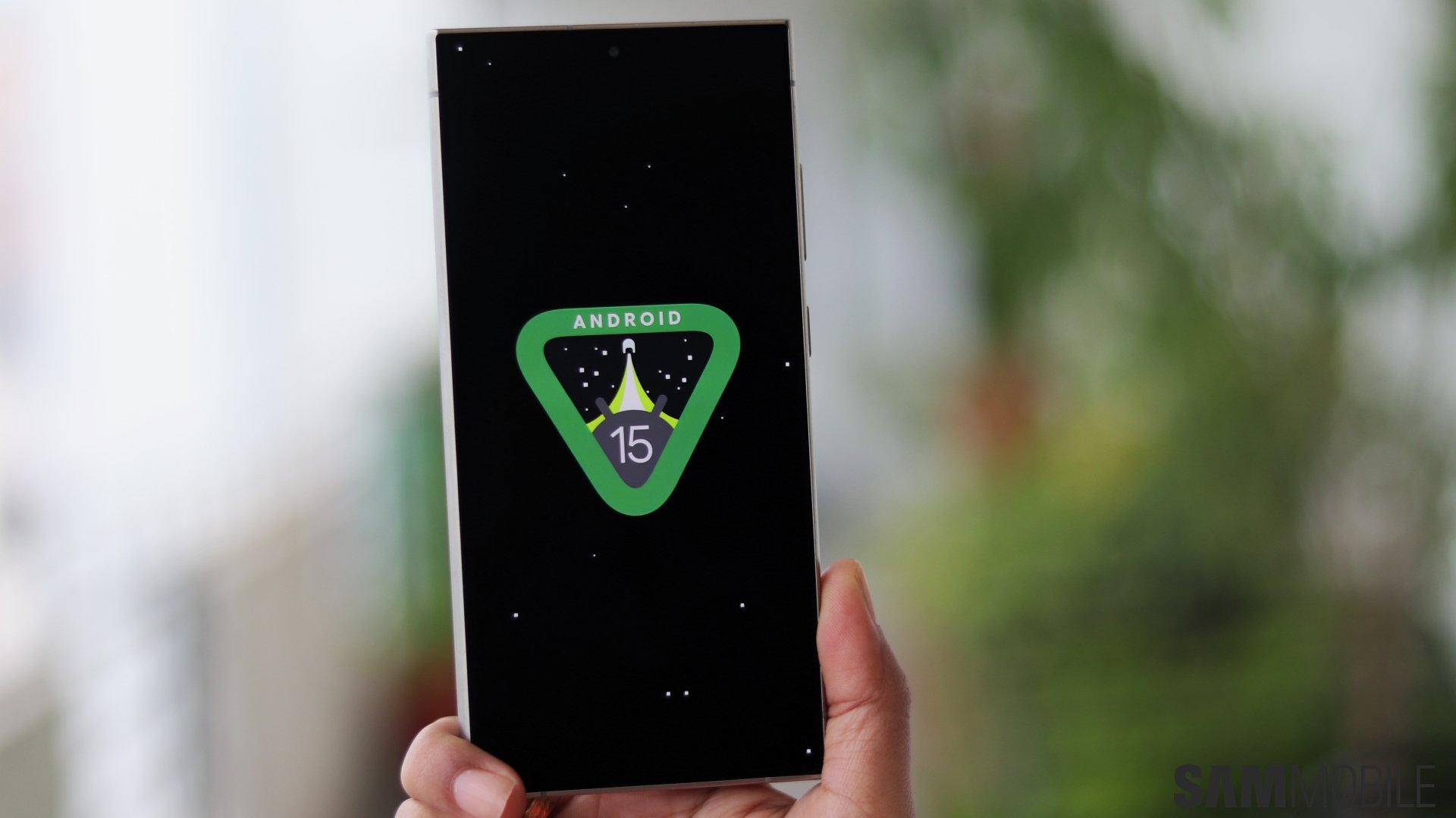
Galaxy S24 Android 15 One UI 7 - Source: Abhijeet Mishra / SamMobile

One UI 7.0, based on Android 15, is the first big operating system upgrade of 2025 for Galaxy smartphones and tablets. For those who have been living under a rock, yes, the latest version of Android and One UI is arriving later than usual.

One UI 7 is the biggest One UI update since version 1.0, with a visual overhaul one of its primary highlights. It has been available in beta for the Galaxy S24, Galaxy S24+, and Galaxy S24 Ultra since early December 2024 and will come preloaded on the Galaxy S25 series out of the box.

More details after the video (visit our YouTube channel for more One UI 7 content)

The official rollout for eligible Galaxy smartphones and tablets will begin sometime in February. Flagship devices will obviously get the update first, but there's one thing that won't change no matter how expensive or affordable a device may be: the steps you can take to prepare your device for when the update arrives.

Most important: Backup your data

When a major software update is involved, it's important to back up your data. Smartphone software has come a long way and instances of an update bricking a device and forcing you to factory reset and lose your data are extremely rare. But rare doesn't equal never, so it's best to take precaution.

Samsung offers several ways to backup your data. If you have a good internet connection, the Temporary cloud backup feature introduced with One UI 6.1 is the best method.

This feature backs up everything on your device to the cloud using your Samsung account for 30 days. There is no limit to how much data can be backed up, except that any individual file cannot be larger than 100GB.

To access the Temporary cloud backup feature, open the Settings app, navigate to Device care, scroll all the way down and tap Maintenance mode, then scroll down once again and tap Temporary cloud backup.

Have all existing software updates installed

Major new Android One UI updates don't usually require your device to have the most current firmware based on the previous Android/One UI version. But you should still ensure any existing updates are already installed. That way, when One UI 7.0 arrives, you can jump to the new software as quickly as possible.

To check for updates, open the Settings app on your Galaxy device, navigate to Software update, then select Download and install. You can also download the latest firmware from the SamMobile archives and install it on the device using a Windows PC.

Charge battery to at least 30%

Samsung requires your device to be charged to 20% before an update can be installed. However, it's recommended to have the battery charged to 30% or more. That's especially important if your device is a few years old and doesn't last as long on a single charge as it used to.

This will make sure your device won't run out of juice during the installation process. You will also be able to explore the new software immediately without having to keep it hooked to a charger.

Update all apps

Samsung will update many of its apps with support for One UI 7 (Android 15). Some updates will come before the official rollout begins and some after, and if you don't want to waste any time after installing the update, you should install all available app updates beforehand.

Most Samsung apps get updates on the Galaxy Store and a few on the Play Store. You can access the updates section in both stores quickly by long pressing the store's icon in the app drawer and selecting the My apps or Update apps option from the pop-up.

Once the One UI 7.0 upgrade is complete, be sure to check for new updates again so you can get any that weren't available on One UI 6.x (Android 14).

Not in a rush to install the One UI 7 update?

When the One UI 7 update goes live in your country, your phone or tablet will eventually notify you about it. It will also download the update on its own on a Wi-Fi connection. But what if you don't want to install the update right away?

Installing the update takes a while, and during the procedure you cannot use the device for anything, even for making or receiving calls. That's not always ideal, so you may want to install the update later. You may also wish to wait to see if the update has any major bugs before upgrading.

If you don't wish to install the update right away, you can simply ignore the notification until you're ready. You can also schedule the installation for a later time. To do that, tap the update notification and hit the Schedule install button.

Upgrading from One UI 7 beta to stable version? The same advice applies

The advice above also applies if you are using the beta version of One UI 7.0. The only thing you can skip is charging the phone to 30%, as the final version of One UI 7 will be a considerably smaller download for you and won't take as long to install as the full update.